Requirements
Before you start
Cursa Watch requires watchOS 26 or later. Any Apple Watch model that supports watchOS 26 will run Cursa. Series 6 or later recommended for always-on display and blood oxygen sensor.
iPhone app first
Install Cursa on your iPhone from TestFlight. The Watch app installs automatically from your iPhone's Watch app.
watchOS 26+
Update your Apple Watch via the Watch app on iPhone: My Watch → General → Software Update.
Setup
Installing the Watch app
The Watch app installs automatically once Cursa is on your iPhone. If it doesn't appear within a few minutes, install it manually.
-
1
Open the Watch app on your iPhone
Tap the Watch icon, then go to the My Watch tab at the bottom.
-
2
Find Cursa in the list
Scroll down to Available Apps. Tap Install next to Cursa. If Cursa is already listed under Installed Apps, you're done.
-
3
Wait for the install to finish
You'll see a progress indicator on your Watch. Keep the Watch and iPhone close together during the download.
-
4
Open Cursa on your Watch
Press the Digital Crown to go to the app grid, then tap Cursa. The first launch asks for permissions — allow them all.
Permissions
Granting permissions
Cursa requests a small set of permissions on first launch. Each one is needed for a core feature — none are used for advertising or tracking.
-
Required
HealthKit — Workouts Saves your runs to Apple Health. Required for all workout modes. Also allows heart rate data from your Watch hardware to flow into Cursa during a run.
-
Required
Location — Always Used for GPS tracking during outdoor runs. The "Always" permission allows the Watch to keep location active when you put your phone in your pocket during a run.
-
Optional
Notifications Used to send split alerts and PR notifications to your Watch face when you're not looking at the screen. Haptics still work if you decline this.
Getting started
Your first run from the wrist
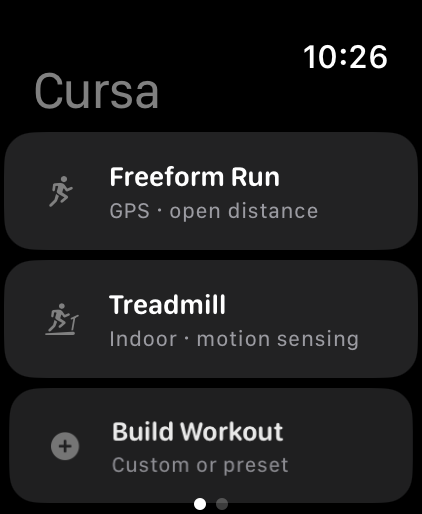
Open Cursa on your Watch. The main screen shows your workout picker — three modes on the first page, with additional options on the next page.
TODAY section
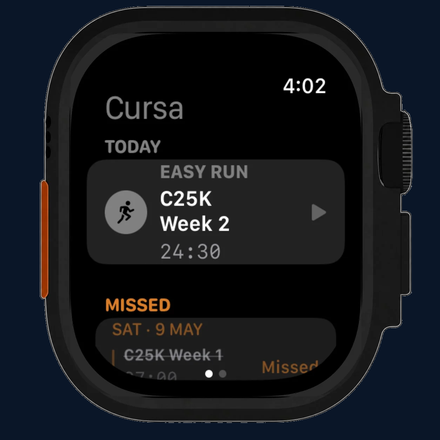
If you have an active training plan on your iPhone, today's scheduled workout appears in a TODAY section at the top of the picker. Tap it to start the workout with the correct structure already loaded — intervals, targets, all of it.
Freeform Run
No plan, no structure. GPS starts, metrics roll, you run. The simplest option. Good for easy days or when you just want to cover ground.
GPS warms up during the 3-second countdown, so your first-fix distance is accurate from the moment you step off. Hold your wrist steady during the countdown — it helps the Watch lock GPS faster.
Treadmill
GPS off, motion sensing on. Uses Apple Watch's accelerometer for distance and pace. Works perfectly indoors and saves automatically to Apple Health with the indoor flag set.
Training plan
Your training plan on the Watch
Set up a training plan once in the Cursa iPhone app and the Watch surfaces your schedule automatically — what to run today, what you've missed, and what's coming up. The plan is created and managed on the iPhone; the Watch shows it and runs it.
Today's workout, front and centre
When you have an active plan, a TODAY card sits at the very top of the workout picker — above Freeform Run, above everything. It shows the workout type, the session title, and your target distance or duration. Tap it to start: the structure is already loaded onto the Watch, so once you're running you don't need your phone.
Done means done
Complete today's session and the card updates to TODAY — DONE with a green checkmark. One glance tells you the day is ticked off.
Missed workouts, kept honest
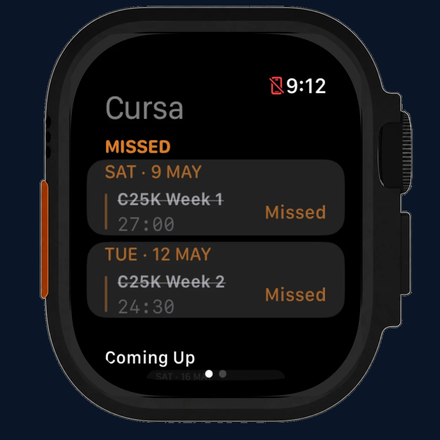
The MISSED section shows plan workouts from the last 7 days that were scheduled but not completed — titles struck through, marked with a Missed badge. It's read-only: you can't edit or reschedule from the Watch, but the gap is right there in front of you.
What's coming up
A Coming Up section previews your next scheduled sessions with their date, title, and target. Read-only — it's just there so you can see the week ahead without reaching for your phone.
During a run
What you'll see mid-run
The run screen has two pages. Swipe left to move between them.
Page 1 — Metrics
Your live stats. Up to 6 metrics in a grid, or a hero layout with one large primary metric and two smaller supporting metrics. Customise which metrics appear in Settings.
Page 2 — Controls
Pause, resume, and stop. Hold the stop button for 2 seconds to end the run — this prevents accidental stops from a wrist bump.
Water lock
Available on the controls page. Locks the touchscreen and Digital Crown so rain or sweat doesn't accidentally pause your run. Rotate the Digital Crown to unlock.
Split alerts
A banner slides in from the top of your screen at every kilometre or mile (matching your unit preference). A voice announcement reads the milestone, your last split time, and current average pace — for example, "Five kilometres. Last kilometre in four fifty-two. Average pace, four fifty-four per kilometre." Paired with a gentle haptic tap.
PR detection mid-run
If you pass through a standard distance (1 mile, 5K, 10K, half, full) faster than ever before, a celebration overlay appears on the metrics page. It doesn't interrupt your run — just acknowledges the moment and clears automatically.
After your run
Post-run summary
When you end a run, a summary screen appears automatically with your key stats, splits, and a route snapshot.
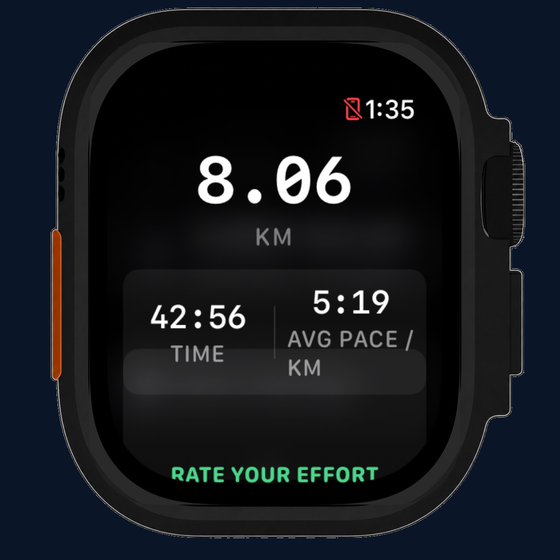
- Distance Hero number at the top — the first thing you see.
- Duration & pace Total elapsed time alongside your average pace for the run.
- Route map A static snapshot of your GPS route (outdoor runs only).
- Split breakdown Every kilometre or mile, with pace bars showing your effort distribution.
- Perceived effort Use the Digital Crown to scroll from 1–5 RPE. This logs alongside your run data and helps Cursa's adaptive training plan stay accurate.
Sync
How sync works
Cursa uses two independent sync paths so your data is never stuck.
WatchConnectivity
Real-time channel when your iPhone is nearby. Training plan workouts and templates push to the Watch instantly when you open the app.
CloudKit
Background sync via iCloud. Runs saved on the Watch appear on iPhone even when you were out with no phone. Requires iCloud sign-in on both devices.
Accessibility
Text size & VoiceOver
Cursa adapts to your preferred text size on both iPhone and Watch. Here are the things most users notice and ask about.
-
The tab bar doesn't scale with text size
Apple's tab bar has a fixed height across all apps on iOS — this is a platform constraint, not a Cursa setting. Every tab bar item has a full VoiceOver label so it is fully accessible with a screen reader even though the text doesn't grow with Dynamic Type.
-
The Lock Screen widget doesn't respond to Display & Brightness → Text Size
Lock Screen widgets use a separate setting: Settings → Accessibility → Display & Text Size → Larger Text. Enable the toggle, then adjust the slider. The Display & Brightness slider controls in-app text; the Accessibility slider controls Lock Screen widget text.
-
Layouts reorganise at large text sizes
Many cards switch from side-by-side to stacked layouts at Accessibility text sizes — the five steps above XXXL. The splits divergence bar is also hidden at those sizes and replaced by colour-coded numbers. All information is still present; it just takes up more vertical space.
-
Watch text size is separate from iPhone
Your Apple Watch has its own text size setting. Adjust it in the Watch app on your iPhone under My Watch → Accessibility → Text Size, or directly on the Watch at Settings → Accessibility → Text Size.
Learn more