Training plans
Adaptive plans
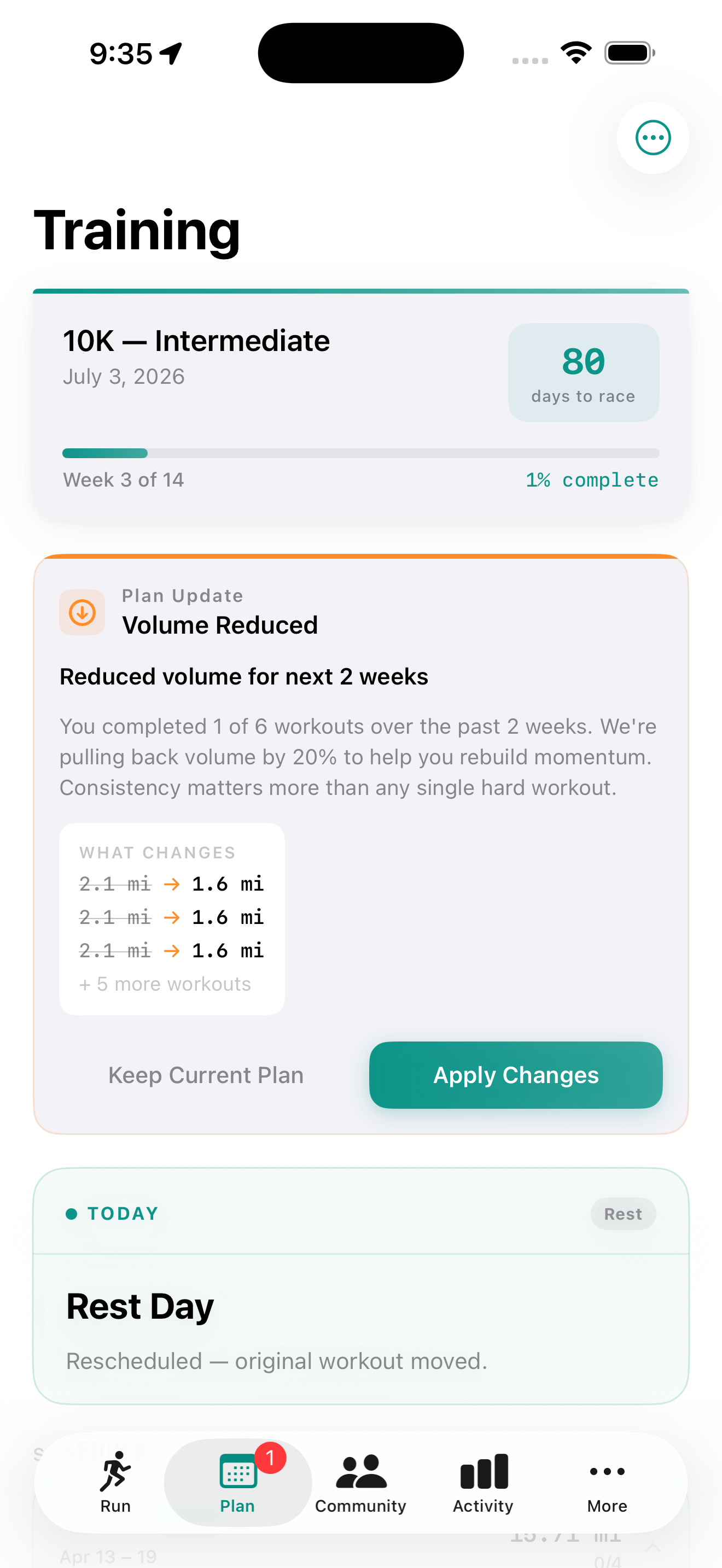
Cursa builds a week-by-week training plan around your goal race. The plan adapts after every run — but unlike most apps, it tells you why it changed instead of silently shuffling the schedule.
Week view
The Training tab shows your current week's workouts in a day-by-day layout. Tap any workout to see pace targets, distance, and structure. Swipe weeks to look ahead.
Adaptive changes
After each run Cursa evaluates your training load, compliance, and performance. If an adjustment is needed, a card appears explaining what changed and why — not a silent reschedule.
Getting started
Setting up your plan
-
1
Tap Training → New Plan
The plan setup screen walks you through a short series of questions. There's no wall of settings — answer a few questions and Cursa fills in the rest.
-
2
Choose a goal race
Select a distance (5K, 10K, half marathon, or full marathon) and a target race date. You can link a specific race from the Events tab if you've already added it.
-
3
Enter your current fitness baseline
A recent race time or recent long run distance. This calibrates the plan's starting intensity — no need to run a time trial. If you've already imported race results, Cursa pre-fills this from your history.
-
4
Set your weekly availability
How many days per week can you run? Which days are rest days? Cursa schedules around your constraints, keeping your long run on the weekend and spreading quality sessions through the week.
-
5
Review and confirm
A plan preview shows the first 4 weeks with total mileage per week. Tap Start Plan to activate it. Your training tab updates immediately.
Plan flexibility
Moving and rescheduling workouts
Life happens. To reschedule a workout, tap and hold it and choose Reschedule, or tap the calendar icon. If the target day already has something scheduled, Cursa offers to swap the two workouts or replace the existing one.
Reschedule a workout
Tap and hold a workout in the week view and choose Reschedule, or tap the calendar icon. Pick the new day and confirm.
Swap
If the destination already has a workout, choosing Swap exchanges the two. Both workouts stay in the week.
Replace
Choosing Replace removes the existing workout from that day and puts the rescheduled workout in its place. The removed workout is not rescheduled automatically.
Workout builder
Building interval workouts
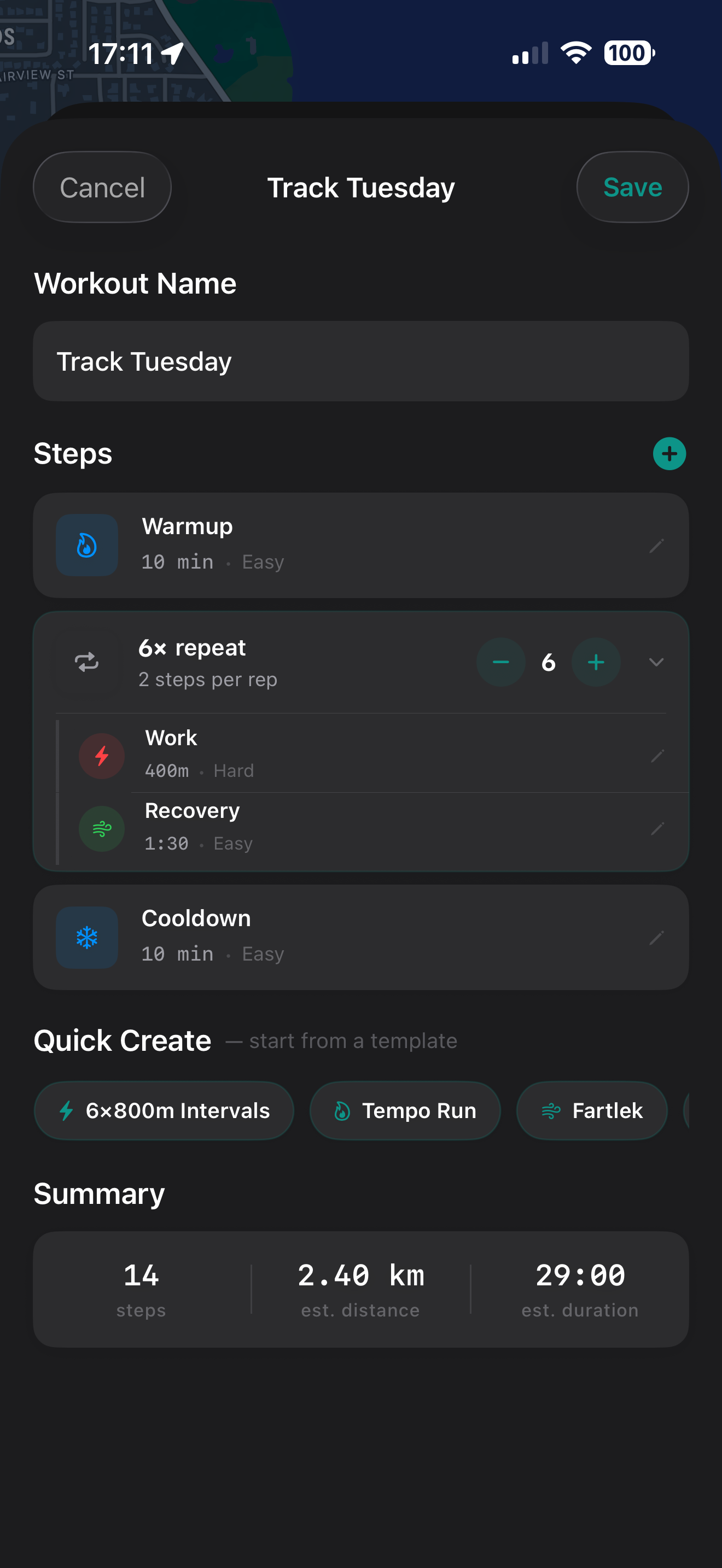
The workout builder lets you create structured sessions with warm-ups, work intervals, rest intervals, and cool-downs. Built workouts sync to your Apple Watch automatically.
-
1
Open the Workout Library from the Run tab
Tap Run → My Workouts → See All to open the Workout Library, then tap + to create a new workout. A blank workout opens with a name field at the top.
-
2
Name the workout
Something memorable. This name appears on your Watch when the workout syncs, so keep it short — "Track Tuesday", "Tempo 6mi", "Long Run".
-
3
Add steps using the + menu
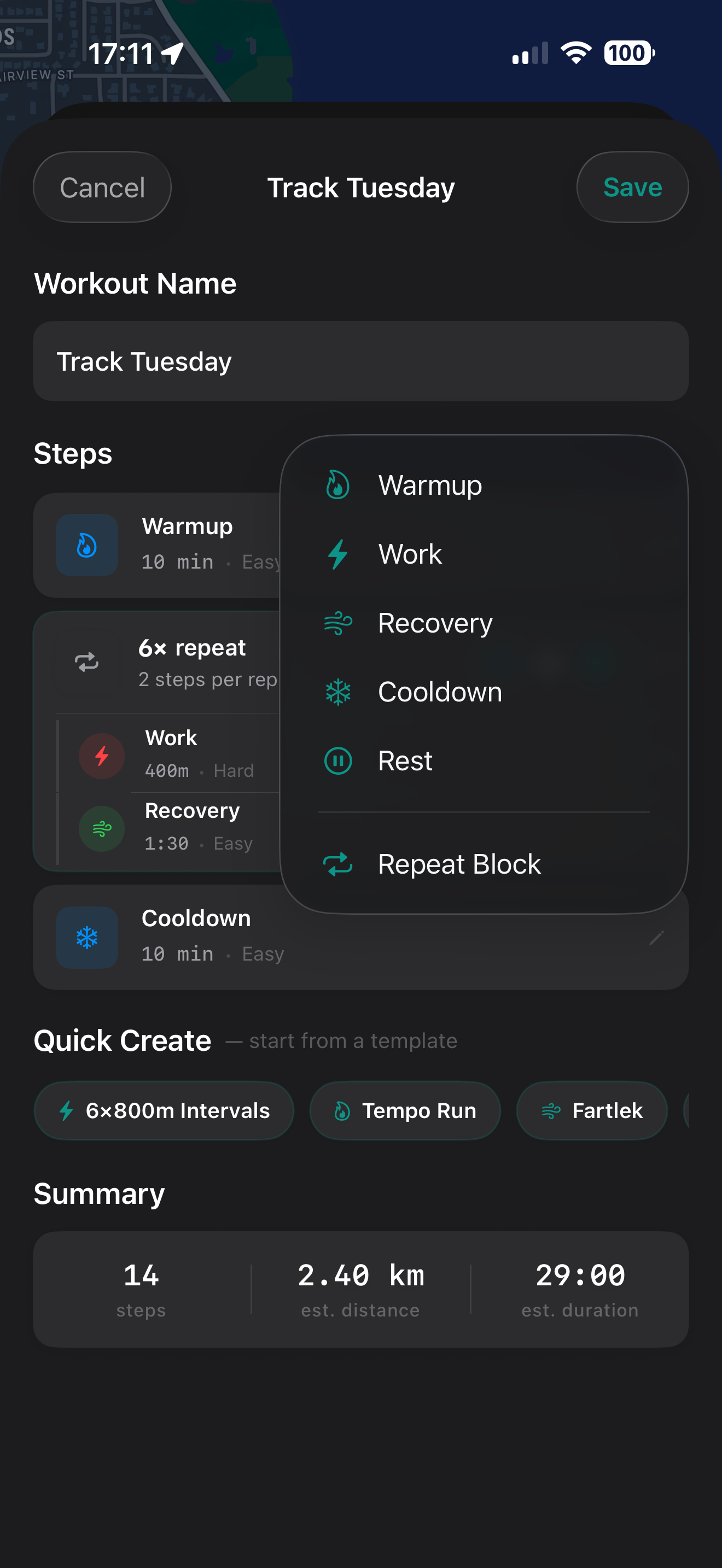
Tap + to add a Warm-up, Work Interval, Recovery, or Cool-down step. Or add a Repeat Block to loop a set of steps multiple times.
-
4
Configure each step
Set duration (minutes) or distance (km or miles), and an optional pace target or heart rate zone. Steps without targets are open-ended — run by feel.
-
5
Save — it syncs to your Watch automatically
The workout appears in the Workouts section of Cursa on your Apple Watch. The next time you open Cursa on your Watch, the workout is there and ready to start.
Example: 6 x 400m track workout
- Warm-up 10 min • easy
- 6x Repeat block
- Work 400 m • 5K pace
- Recovery 90 sec • easy jog
- Cool-down 10 min • easy
Workout library
Saved workouts
Every workout you build is saved to your library. Tap any saved workout to start it immediately, edit it, or assign it to a specific date in your training plan.
Start from library
Tap any workout in the library and choose Start Workout to run it on your iPhone, or Start on Apple Watch to hand it off to your wrist. The two buttons are deliberately separate so you pick the tracker every time.
Assign to a plan day
Long-press a workout in the library to assign it to a specific date in your active training plan. It replaces whatever was scheduled for that day.
AI coaching
Post-run feedback
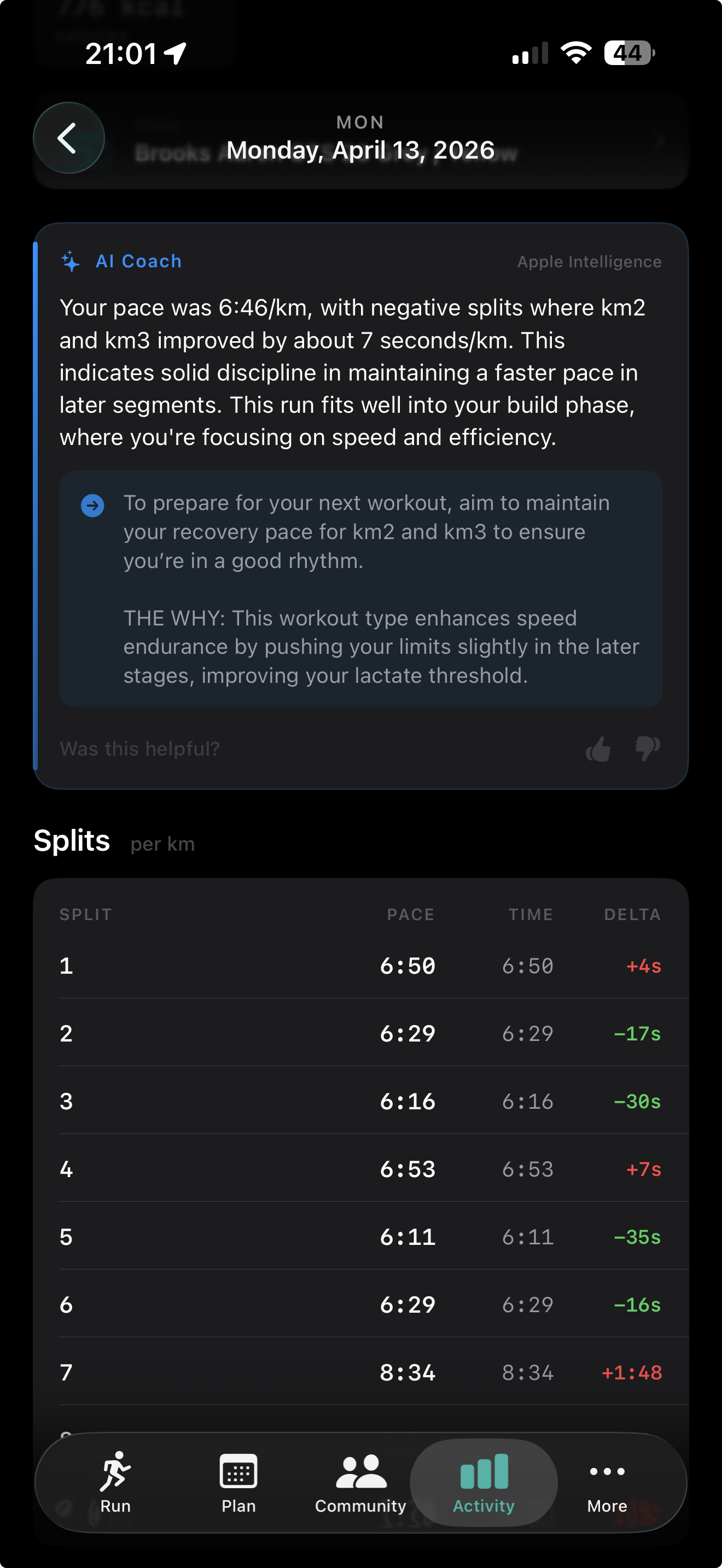
After every run, Cursa can generate a short coaching note using Apple Intelligence, entirely on your device. It looks at how the run compared to the plan and offers context-aware feedback.
What the feedback covers
Effort relative to your current fitness level, pacing strategy, how the run fits the training week, and one actionable note for next time. Never generic — it references your actual splits and targets.
Apple Intelligence
Cursa uses Apple Intelligence to generate coaching feedback directly on your device, which means we don't need to send your run and training plan data to public Large Language Models, such as ChatGPT or Claude, for coaching.
How workouts are counted — v1.1
Workout completion threshold
Cursa now uses a consistent rule to decide whether a run counts as completing a planned workout — the same rule on your iPhone, your Watch, and the background sync pass that runs after the run saves to iCloud.
Normal training days: 95%
A workout is marked complete when you reach at least 95% of its target distance — or 95% of the target duration on time-based workouts. So a 10 km easy run is ticked off once you've covered 9.5 km or more. This gives real-world tolerance for stopping your Garmin at the door rather than running past it.
Race day: 98%
On the day of your goal race, the threshold rises to 98%. This absorbs the small gap between Cursa's GPS-measured distance and the official course measurement — a runner who crosses the finish line typically logs 98–102% of the advertised distance, so 98% accepts a real finish without false-negatives.
No target? Always counts
If a workout has no distance target, no duration target, and no embedded structure, Cursa has no yardstick to check against — so the run counts unconditionally. This applies to fully open workouts where the goal is just to get out the door.
Common questions
-
I ran my workout but it shows as missed
Check the distance logged against the workout's target in the Training tab. If the run fell below 95% of the target — for example, 9.3 km on a 10 km workout — it will not count. This is intentional: a significantly short run means the training stimulus wasn't fully delivered. If GPS drift shortened your logged distance despite running the full route, running a small extra loop at the end of future runs ensures you clear the threshold.
-
On race day my finish was rejected at 98%
98% is the race-day floor — it exists specifically to handle the gap between GPS distance and chip timing. If you genuinely crossed the finish line but Cursa logged less than 98% of the course distance, the most likely cause is GPS signal loss near the finish. Check that Location is set to "Always" in iOS Settings before your next race. You can manually mark the race workout complete by tapping it in the Training tab.
-
A workout from a couple of weeks ago is now showing un-linked
Cursa re-evaluates completed workouts in the past 14 days each time the app opens — the same completion check, applied retroactively. If a run's linked distance no longer meets the threshold (for example after a sync correction), the link is removed. The run stays in your history; it just no longer counts toward that plan workout. You can re-link it manually from the workout detail screen.
-
The check ran differently on my Watch vs. my iPhone
The completion rule is identical on both devices — 95% for normal workouts, 98% on race day. If you see different statuses, it's usually a CloudKit sync delay: the phone and Watch may not yet agree on the run's distance. Wait a few seconds with both devices near each other, then pull to refresh in the Training tab.
Continue reading