Before you start
The pre-run screen
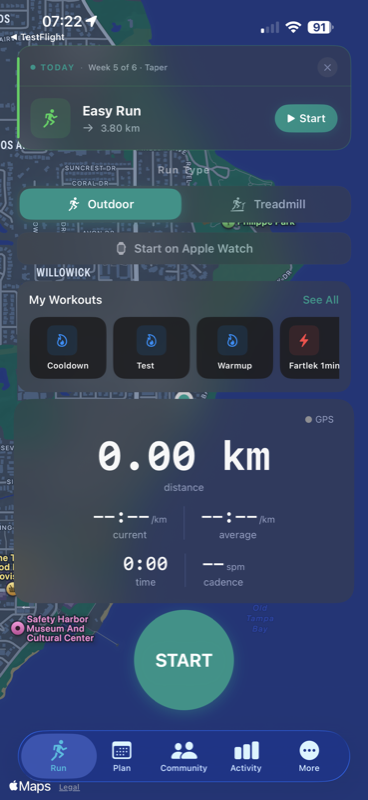
The Run tab shows your pre-run screen. If you have an active training plan, today's scheduled workout appears as a banner at the top — tap it to start with the correct structure already loaded.
Today's workout
If a training plan is active, the scheduled workout for today appears as a card above the mode selector. Tap Start Workout to begin the structured session with intervals and targets already configured.
Automatic shoe tracking
Cursa credits every completed run to your current shoe automatically — no tagging required before or during the run. If you rotate between multiple active pairs, the most-recently-started one is the default. You can reassign a run to a different pair from the run detail screen if you ever need to correct it.
Mode 1
Outdoor GPS
The default mode. Uses iPhone GPS and CoreLocation for accurate distance and route recording. Best for roads, trails, and tracks.
-
1
Select Outdoor (default)
The toggle at the top of the pre-run screen should already show Outdoor. If it shows Treadmill, tap to switch back.
-
2
Tap Start Run
A 3-second countdown appears while GPS acquires a fix. Step outside before tapping — buildings block GPS signal on the first fix.
-
3
Keep your phone accessible (or start the run on your Watch)
If you started on your iPhone, it needs to stay on your person for GPS to work — arm band, vest pocket, or hand. If you have an Apple Watch and want to leave the phone at home, use the separate Start on Apple Watch button on the pre-run screen instead; the Watch then owns the GPS session.
GPS accuracy settings
- •Accuracy target: best navigation quality
- •Points with accuracy worse than 20 m are filtered out
- •Speeds above 43 km/h are discarded as GPS glitches
- •Location updates stop automatically when you end a run
Mode 2
Treadmill mode
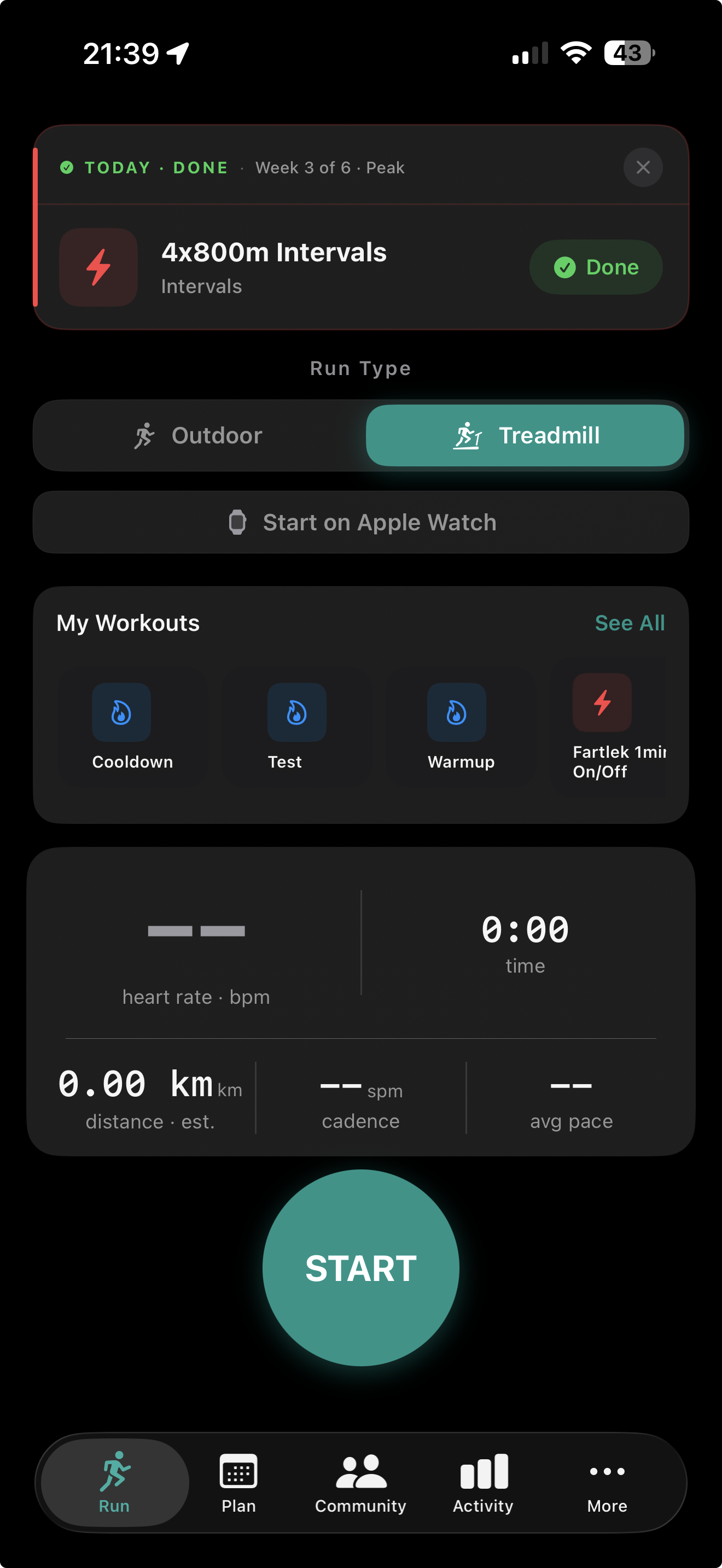
No GPS needed. Cursa measures distance using your iPhone's motion sensors — just select Treadmill, hit Start, and run. No speed entry required.
-
1
Select Treadmill on the Run Type toggle
On the Run tab, tap the toggle to switch from Outdoor to Treadmill. The toggle highlights teal to confirm treadmill mode is active.
-
2
Pick a workout template (optional)
Scroll the My Workouts row to choose a structured session — intervals, tempo, easy run, or any custom template you've built. Skip this step for an unstructured run.
-
3
Tap Start and begin running
Hit the big Start button, step onto the treadmill, and go. No belt speed to enter — Cursa starts tracking immediately.
-
4
Watch your live metrics
Heart rate, time, distance, cadence, and average pace all update in real time. Distance shows an "est." label to reflect that it's sensor-based rather than GPS-derived.
Treadmill mode on the Run tab
Comparison
Outdoor vs. treadmill
During a run
Live metrics
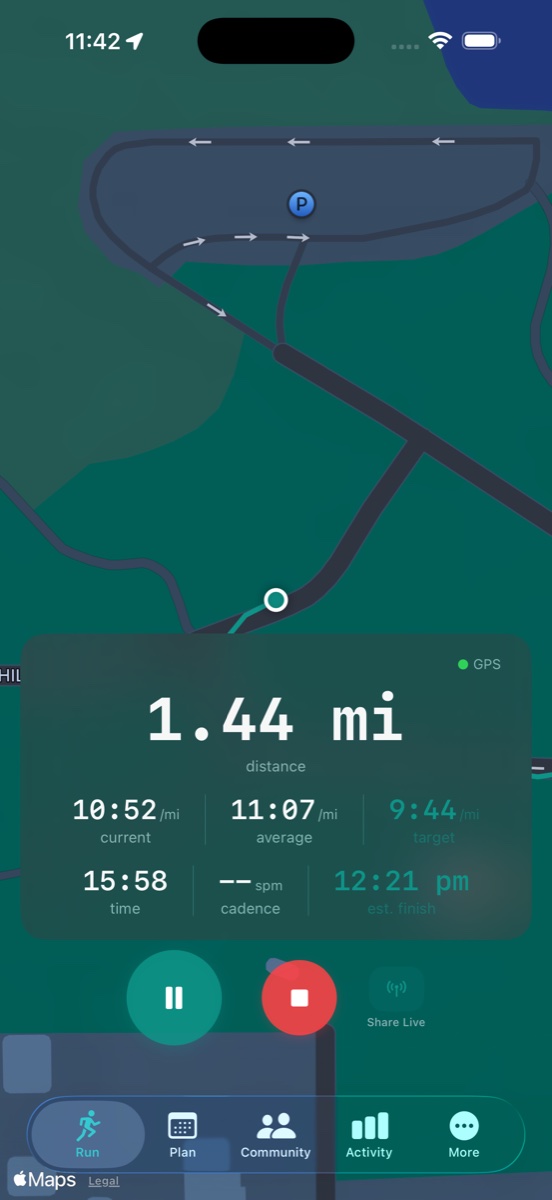
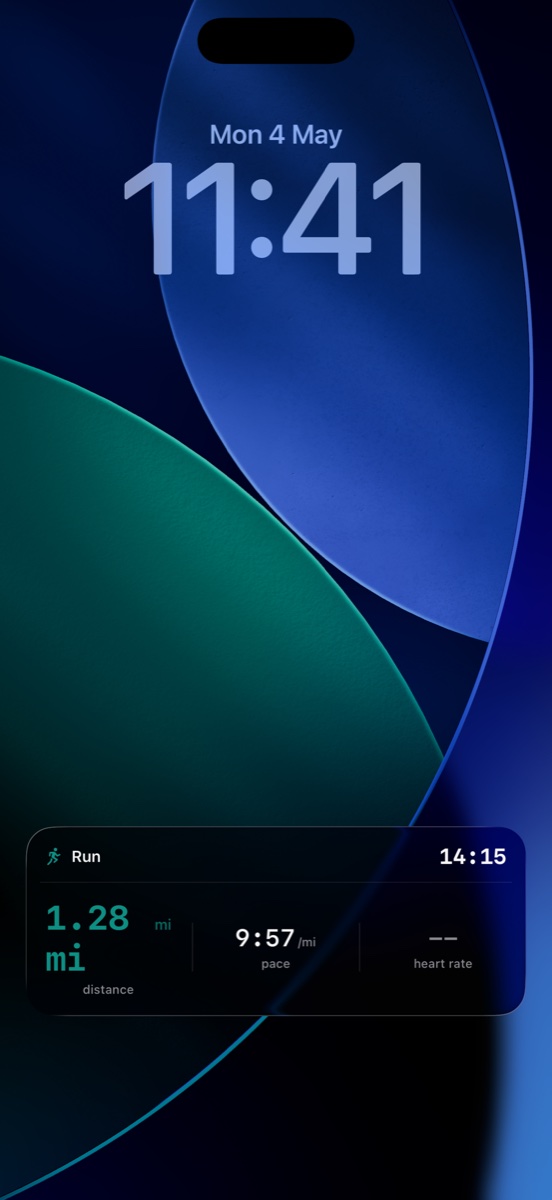
The active run screen shows your key stats updating in real time. The metrics displayed and their layout can be customised in Settings.
Available metrics
- Distance
- Elapsed time
- Current pace
- Average pace
- Heart rate
- Cadence
- Calories
Controls
- Pause / resume
- Stop
- Speed update (treadmill)
- Map toggle (outdoor)
In-run alerts
Splits and personal records
Split alerts
A banner slides in from the top of the screen at every kilometre or mile (matching your unit preference in Settings). Your split pace and total elapsed time appear. The banner clears automatically after a few seconds.
Personal record detection
When you stop the run, Cursa scans your cumulative split data and finds the fastest contiguous segment for each standard distance — 1 mile, 5K, 10K, half marathon, full marathon. If any of those segments beats your existing PR, a celebration overlay appears on screen before the post-run summary. If you're running with Apple Watch, the celebration fires mid-run on your wrist the moment you cross a record-setting threshold.
In-run coaching
Pace Coach
Cursa watches your pace throughout a run and tells you when you're drifting off target — without firing on every traffic light or hill.
How it works
When you're running a structured workout with a target pace, Cursa monitors your rolling pace continuously. If you stay off-target for a 15–30 second window — not just a momentary GPS flicker — it lets you know. The first alert is always a haptic tap only. Voice cues add context if you've enabled them for that workout type: for example "20 seconds over target for 18 seconds, flat ground."
Quiet mode
During a structured workout (interval session or plan workout), the active-run screen shows a small Coach on button beside the LAP control. Tap it once to silence pace alerts — both voice cues and haptic taps — for the rest of that run. The label flips to Coach off; tap again to re-enable. Your saved Pace Coach settings aren't changed, and the silence resets for the next run. The button doesn't appear on free runs (Pace Coach behaviour there is driven entirely by your settings).
Configurable per workout type
Pace Coach has separate on/off toggles for each workout type — easy runs, long runs, tempo, and intervals — plus per-type voice cue toggles for long, tempo, and interval sessions. Sensitivity is a single global setting (Balanced by default). Configure everything at Me → Pace Coach.
Share your run
Live Tracking
Let friends and family watch your run in real time. Enable sharing before you start — they get an email link and can follow your dot on a map in any browser. No app required on their end.
-
1
Enable "Share Live" before starting
On the pre-run screen, toggle Share Live on. When you tap Start, Cursa begins broadcasting your GPS automatically. The toggle is off by default each session — you opt in per run.
-
2
Beacon contacts get emailed automatically
Anyone you've added as a Beacon contact receives an email the moment your broadcast starts — with a link to the spectator page. You configure contacts once at Me → Privacy → Notify on start and they're notified on every future live run. No texting required from the start line.
-
3
Finish your run
When you stop, the live feed closes and spectators see a run-complete state with your final stats — distance, duration, and pace. The session link stays viewable for 7 days, then the data is purged in line with our privacy policy.
Beacon contacts
Add email addresses as Beacon contacts in Me → Privacy → Notify on start. When you start sharing, they get an email automatically — no need to text them the link each time. You can send yourself a test email from the same screen to confirm delivery before a real run.
Privacy controls
Live Tracking can be disabled globally at Me → Privacy → Live tracking. Ghost mode hides your name from the spectator page — spectators see your position but not who you are. Ghost mode and live tracking cannot be on at the same time; the app warns you if you try.
After your run
Post-run summary
Ending a run opens the post-run summary automatically. It gives you the full picture before the run is saved.
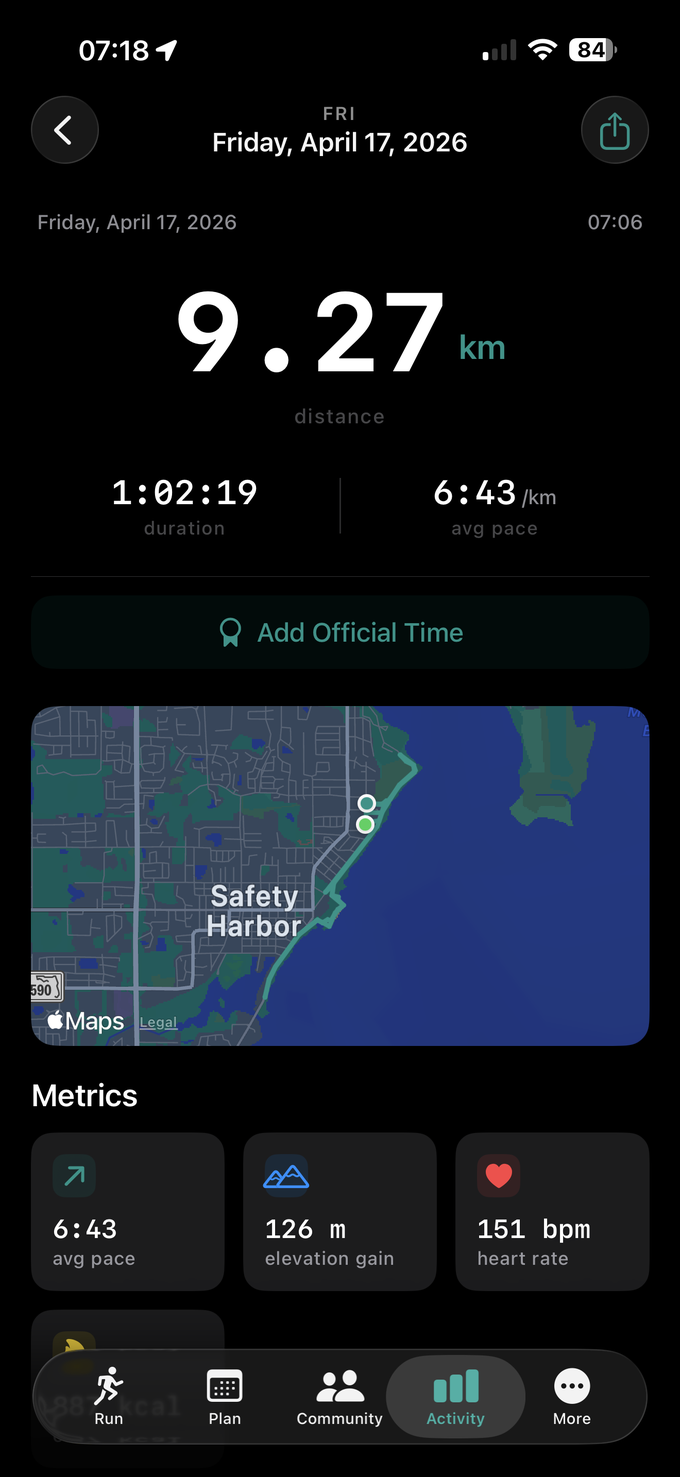
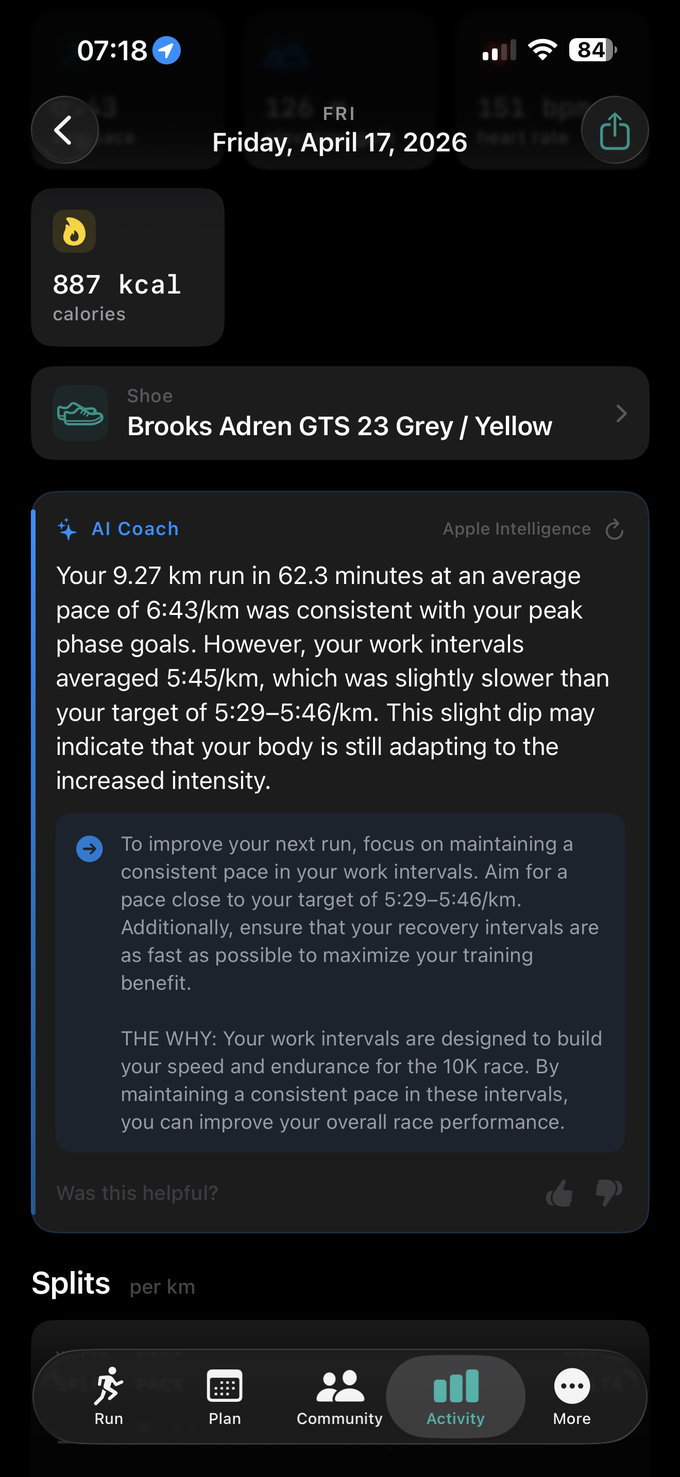
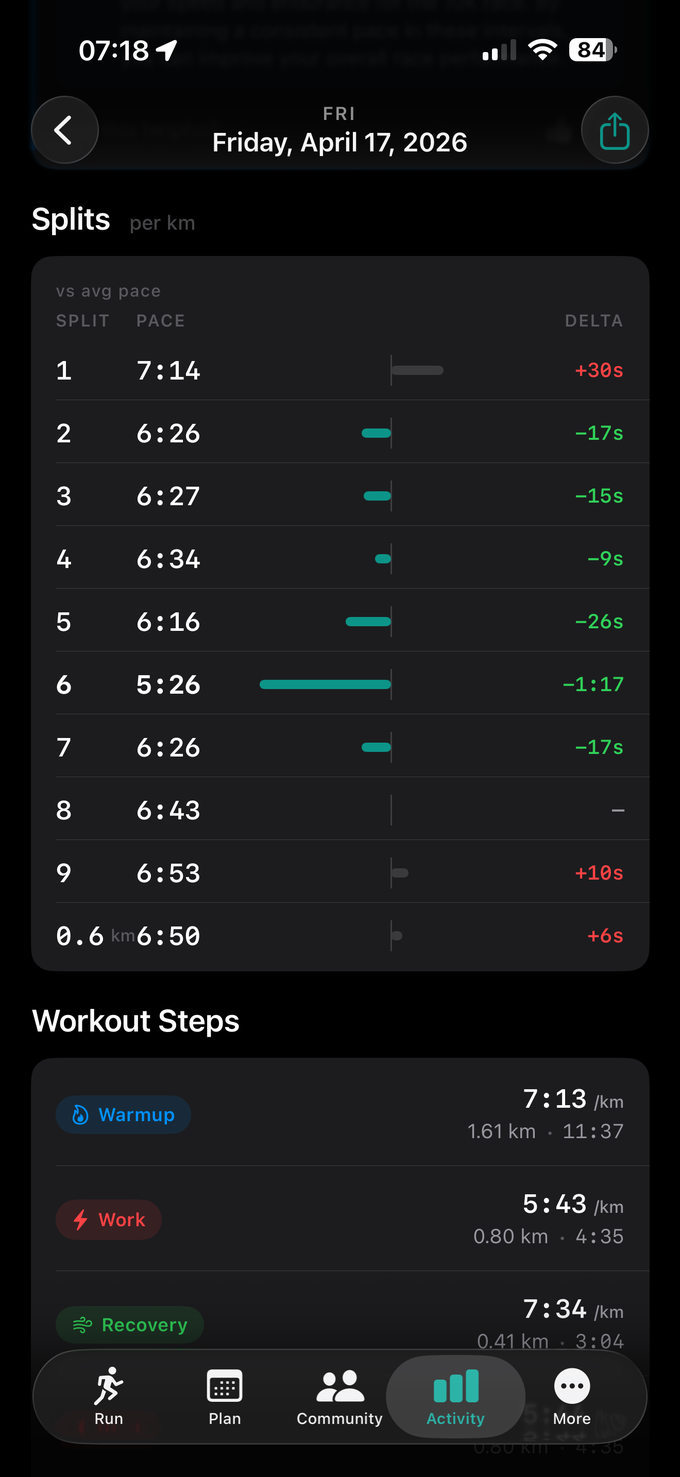
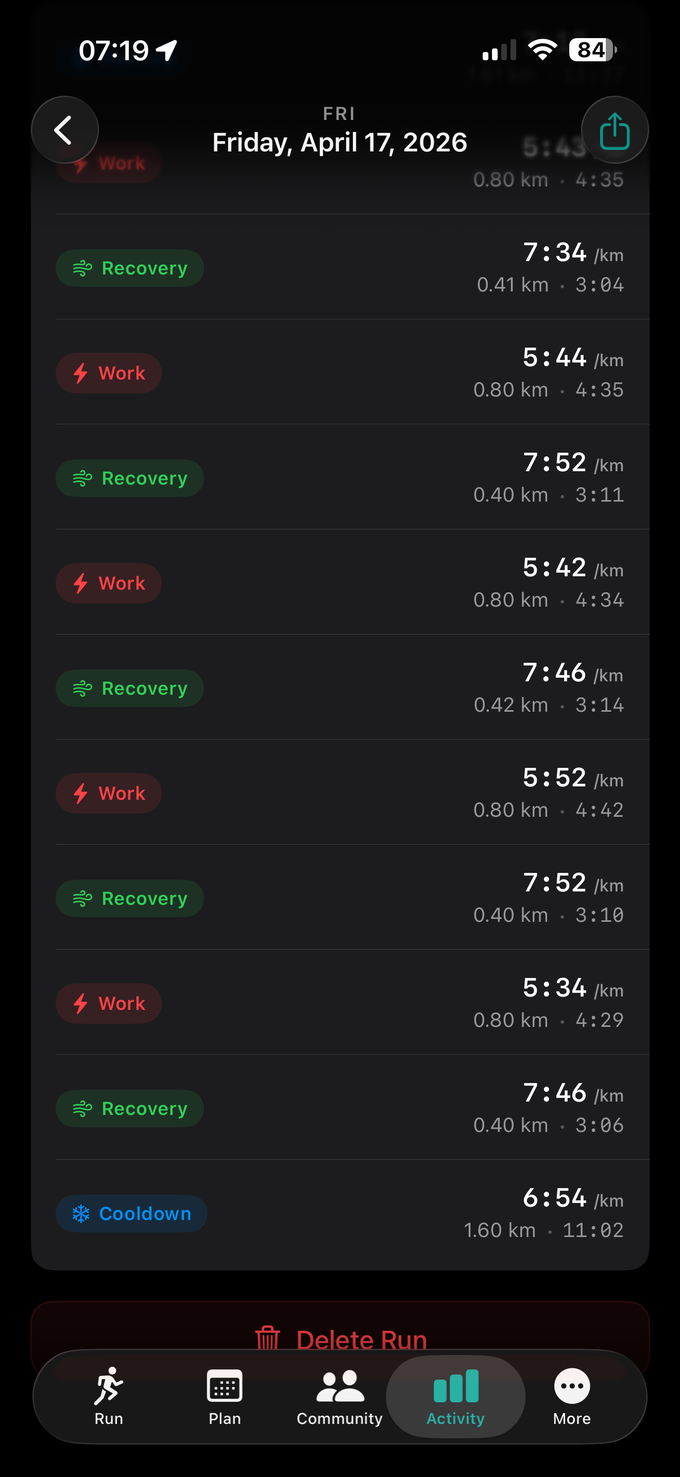
- Distance Hero number at the top — the first thing you see.
- Time & pace Total elapsed time and your average pace for the run.
- Split table Every km or mile with individual split paces and pace bars showing effort distribution.
- Route map Interactive map of your GPS route (outdoor runs only). Pinch to zoom.
- Heart rate Average and peak HR for the run, plus a zone breakdown if heart rate was recorded.
- Cadence Average steps per minute over the run.
- New PRs Any personal records set during this run are highlighted with a gold badge.
Run detail — v1.1
Splits divergence
The splits table in Run Detail now shows you not just how fast each kilometre was, but how it compared to your average pace for the run — so you can see immediately where you pushed, where you faded, and whether your effort was even.
How to read it
Each split row shows a centred divergence bar anchored to your average pace for the run. Faster-than-average splits extend left in teal. Slower splits extend right in grey. A numeric delta column alongside the bar shows the exact difference — for example −9s for a split that was 9 seconds per km faster than average, or +10s for one that was 10 seconds slower.
Normalised against your biggest swing
The bars are scaled proportionally — the split with the largest deviation fills the full bar width, and every other split is sized relative to it. This means you can compare the shape of your effort distribution at a glance, regardless of total distance.
Only shown when there's enough data
The chart is suppressed on runs of 3 splits or fewer — a single-kilometre outlier on a short run doesn't tell you anything useful about pacing. If you're building up from a run/walk programme, splits still appear as a plain list until your runs are consistently longer.
Common questions
-
What does the bar in my splits mean?
The centre axis of the bar represents your average pace for the entire run. Splits that were faster than average extend to the left in teal. Splits that were slower extend to the right in grey. The further a bar extends, the bigger the gap from your average. The numeric delta column alongside the bar shows the exact difference in seconds per km — for example
−9smeans that kilometre was 9 seconds per km faster than your average. -
What does the delta column show?
How many seconds per km that split was faster or slower than your run's average pace. A negative number in green means you were ahead of average; a positive number in red means you were behind. If the split is within 3 seconds of average, the number appears in grey — that's effectively even pacing and doesn't need calling out.
-
Why don't my early C25K runs show the bar?
The divergence bars are hidden on runs with 3 splits or fewer. With so few data points, a single outlier split dominates the chart and the comparison is misleading. Your splits still appear as a plain list with individual paces. The bars appear automatically once your runs are consistently longer.
-
The bar disappears when I increase text size
At Accessibility text sizes, the bar is hidden to give the pace and delta columns more room to breathe. The delta column still colour-codes faster splits in green and slower in red, so the same information is available without the visual chart.
-
Why doesn't the Watch show the bar?
The Apple Watch screen is too narrow to show a centred divergence bar alongside split number, pace, and delta without the layout breaking. Instead, pace values are colour-coded — faster-than-average splits appear in teal, on-average or slower splits in white. It conveys the same relative information at the size that fits the wrist.
-
How does VoiceOver read the splits bar?
The bar graphic is hidden from VoiceOver — it is visual-only and redundant when the numbers are present. Each split row is read as a single label, for example: "Split 3, 5:42 per km, 9 seconds faster than average." No information is lost for assistive technology users.
Continue reading