Community tab
Your activity feed
The Community tab is a chronological feed of runs from people you follow and clubs you're a member of. Each run card shows distance, pace, and time at a glance — tap any run to open its full detail, route map, and splits.
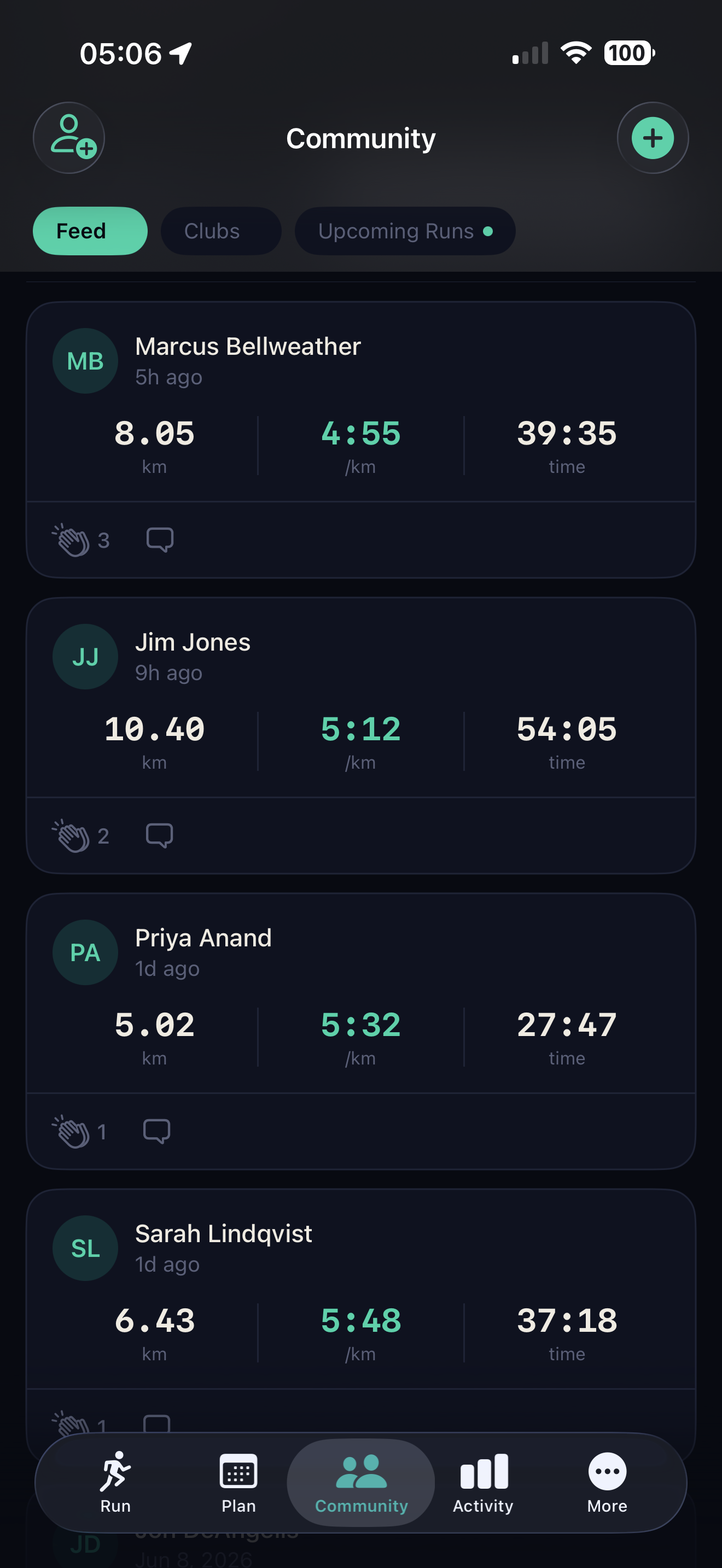
Kudos
Tap the heart on any run card to give kudos. The runner gets a notification. No comments — just a quick acknowledgement that you saw their effort.
Runner profiles
Tap a runner's name or avatar to open their public profile — recent runs, PR table, clubs, and total mileage. Only data they've marked public is visible.
Following runners
Finding and following runners
Tap the person.badge.plus button at the top left of the Community tab to follow someone. You can search by name or scan their QR code in person.
Search by name
Type a first or last name. Results show runners with that name who have a Cursa profile. Tap Follow to send a follow request if their account is private, or follow immediately if it's public.
Scan QR code
Each profile has a unique QR code — find it at Me → Profile → Share. Scanning opens a follow prompt instantly. Useful at race starts or group runs.
Live Tracking
Watch a run in real time
When someone shares a live run with you, you don't need Cursa installed. Open the link in any browser and watch their position update on a map as they run.
The spectator view
The page shows a live map with the runner's current position, distance covered, elapsed time, and current pace — all updating in real time. The route traces behind them as they go. No account, no app, no signup required.
Beacon notifications
If a runner has added you as a Beacon contact (via Me → Privacy → Notify on start), you'll get an email the moment they start sharing a run containing a link to the spectator page — no waiting for them to text you the link mid-run.
Privacy first
When the runner finishes, the spectator page shows a run-complete state with final stats — distance, duration, pace. The session link is retained for 7 days before being purged, in line with our privacy policy. The runner can also enable Ghost mode, which shows their position without their name — useful for large races where they don't want their name publicly visible on the web.
Run clubs
Joining and creating clubs
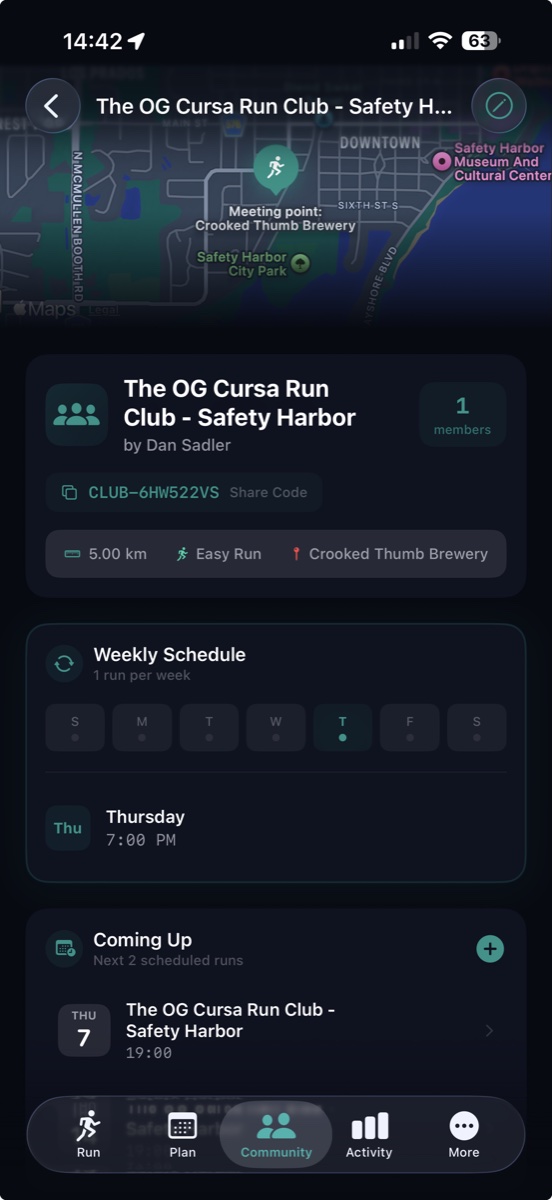
Run clubs are groups within Cursa — they have their own event calendar, group leaderboards, and activity feed. You can join existing clubs or create your own.
Joining a club
-
1
Community tab → Clubs → Browse
Clubs near you appear first, ordered by member count. Use the search bar to find a club by name.
-
2
Open the club and tap Join
Open clubs add you immediately. Private clubs send a join request to the admins — you'll get a notification when it's approved or declined.
-
3
See the club in your Community feed
Club members' runs now appear in your activity feed. Club events show in your Upcoming section in the Events tab. The club leaderboard is live immediately.
Creating a club
-
1
Community tab → + → New Run Club
The create club form opens with fields for name, description, city, and visibility (open or private).
-
2
Fill in the details and tap Create
You become the owner automatically. Your club is immediately searchable (or private, if you chose that). Share the link or QR code to invite your first members.
-
3
Invite your running group
From the club detail screen, tap Share Club to get a link or QR code. Members can also find the club by searching your club's name.
Club member roles
- Owner Created the club. Can delete it, promote admins, and remove any member.
- Admin Can create events, approve or decline join requests, and remove members.
- Member Can see all club content, RSVP to events, and appear on leaderboards.
Club leaderboards — coming soon
Leaderboards
Club leaderboards are on the roadmap for an upcoming release. The plan covers three views — weekly mileage, post-event finish times, and all-time totals — so members can see who's putting in the miles without leaving the club tab.
Weekly mileage — Coming soon
Total distance run by each member during the current week, resetting every Monday. Your row highlighted regardless of rank.
Event leaderboard — Coming soon
After a club event, the leaderboard shows all members who completed the run, ranked by finish time. Runs auto-linked when they match the event date and approximate distance.
All-time leaderboard — Coming soon
Total mileage run by each member since joining the club. A long-term view of who's putting in the work.
Group runs
Coordinating group runs
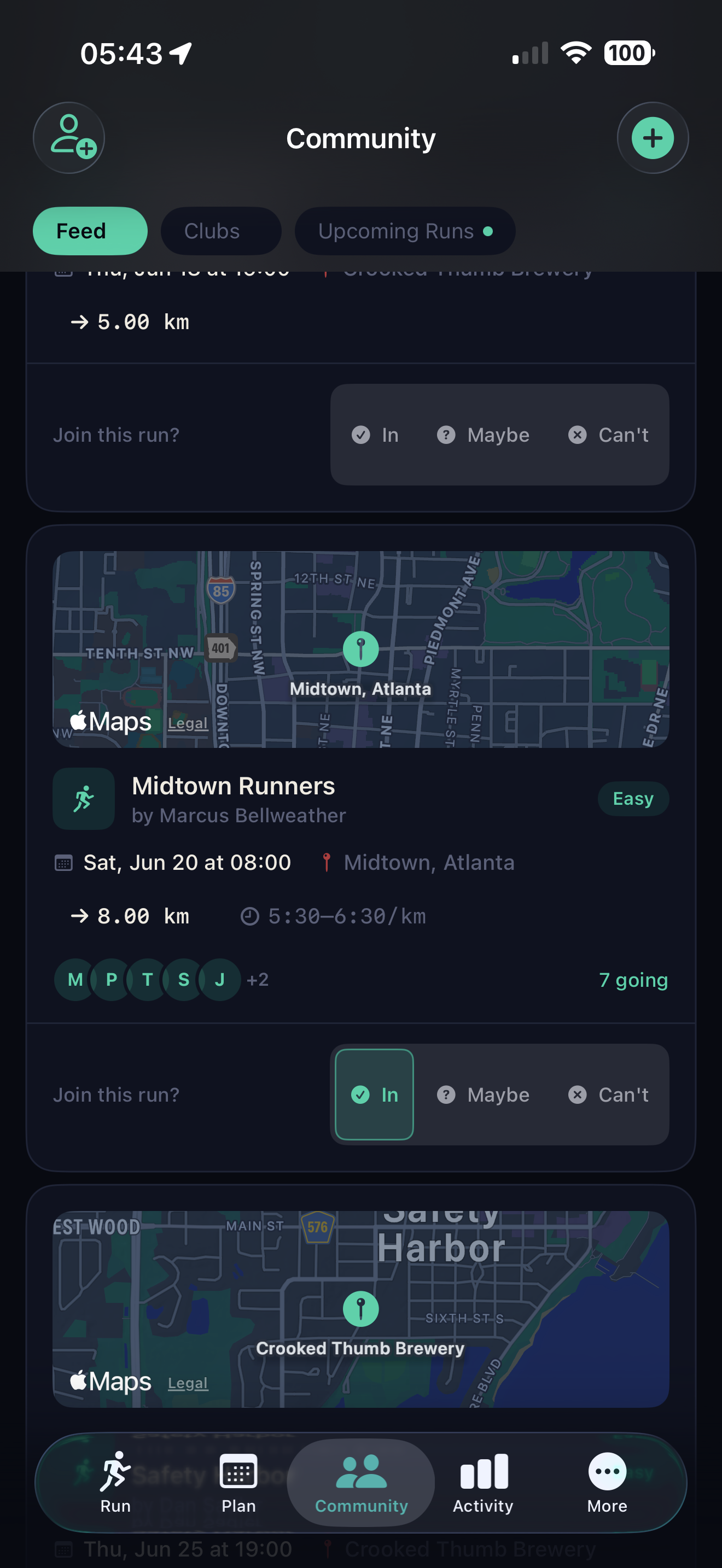
Group runs are lightweight events — a time, a location, and an optional target distance. Anyone in the club can propose one and members RSVP to confirm who's coming.
-
1
Community tab → + → New Group Run
The create screen asks for a title, date and time, meeting location (searchable address or pin on map), and an optional target distance.
-
2
Assign to a club
If you're in multiple clubs, choose which club this run is for. Members of that club get a notification about the new group run.
-
3
Members RSVP
Going, Maybe, or Not Going. The RSVP count and member avatars show on the group run card in everyone's feed. You can see exactly who's planning to come.
-
4
After the run — results are auto-linked
Runs completed on the same day that match the group run's approximate distance are automatically linked to the event, so members can see who actually showed up.
Events tab
Races and events
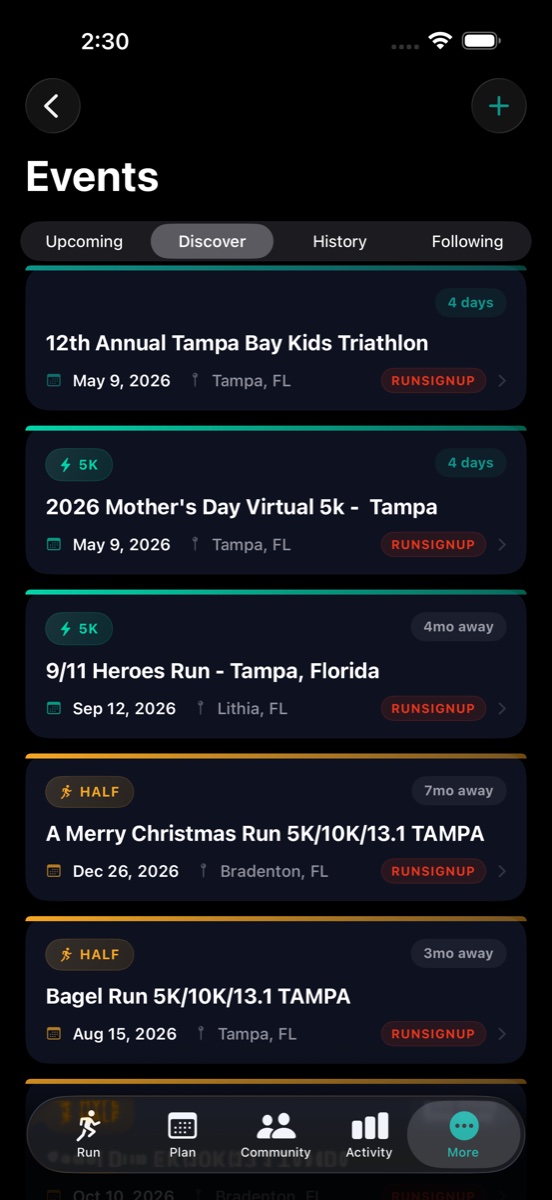
The Events tab is a four-section view covering upcoming races, event discovery, your race history, and the series you follow.
Upcoming
A unified list of your personal race calendar entries, club events you've RSVP'd to, and group runs you're attending. Your goal race (if you've set one) appears as a hero card at the top with days remaining.
Discover
Search for upcoming races near you powered by RunSignUp. Filter by distance and date range. Tap any race to see details and add it to your calendar.
History
Your past race results — the same data as Me → Race Results — shown in the events context. Great for reviewing what you ran last year before signing up again.
Following
Race series you follow — like your local 5K series or a major marathon. When new editions of followed races open for registration, they appear here automatically.
Done reading