Metrics
Personalising your run screen
You choose which numbers appear during a run and in what order. Changes take effect immediately — no restart needed.
-
1
Open Metric Settings on your Watch
Scroll to the bottom of the workout picker and tap Metric Settings (the gear icon). This opens the settings screen without leaving the app.
-
2
Choose a layout
Grid shows up to 6 metrics — the first in the list is rendered as a full-width primary tile at the top, and the rest fill a 2-column grid underneath. Hero shows one large dominant metric at the centre with two smaller metrics side-by-side underneath. Elapsed time stays pinned to the top-right in both layouts. Hero is good for pace-focused runners who want one number to dominate.
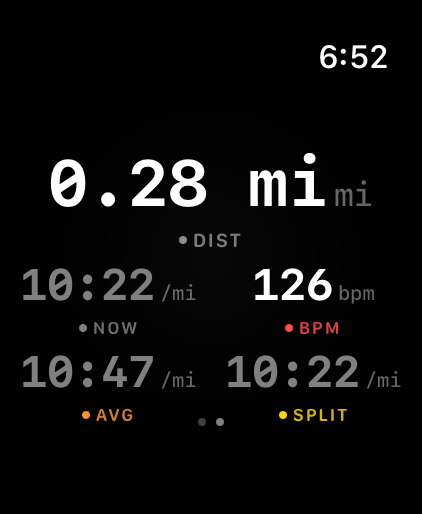 Grid layout
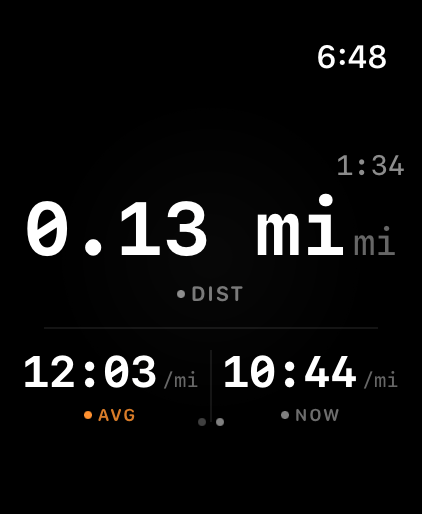 Hero layout
 -
3
Reorder your active metrics
In the Active Metrics section, drag the lines on the right to reorder. The first metric in the list is the full-width primary tile in Grid, or the dominant centre metric in Hero.
-
4
Add or remove metrics
Swipe left on an active metric to remove it. Tap any metric in the Available section below to add it. Maximum 6 active metrics — Grid renders all of them; Hero renders only the first 3. Switching layouts doesn't reset your list, so you can flip between them without losing your selection.
Quick change mid-run: In Hero layout, tap and hold on the metric for about a second until the picker appears, then turn the Digital Crown to swap it. Tap Done to confirm.
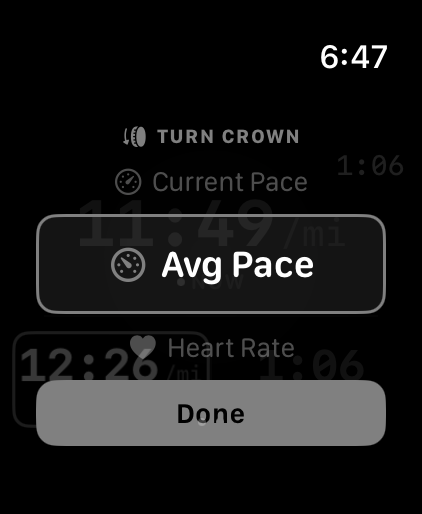 Turn the Crown to swap metrics mid-run
 -
5
Set your distance units
Scroll to the Units section. Pick km or mi. This syncs back to your iPhone automatically — you only need to set it in one place.
All available metrics
Coaching
Pace Coach settings
Pace Coach alerts you mid-run when you drift off target. You can tune how sensitive it is, which workout types use it, and whether it speaks or just taps.
- Enable / disable Me → Pace Coach → Enable pace alerts. Master toggle, plus individual toggles for easy runs, long runs, tempo, and intervals.
- Sensitivity Loose, Balanced (default), or Tight. Loose fires only when you're meaningfully off pace. Tight is for runners who want to nail a target precisely.
- Voice alerts Off by default for easy and long runs. On by default for tempo and intervals. Can be changed per workout type.
- Quiet mode Tap "Coach off" on the run screen to silence voice cues for the current run. Haptic taps still fire. Resets for the next run.
Watch Face
Complications
Cursa adds one complication to your watch face: monthly running distance. It updates after every completed run and shows your progress at a glance — no app launch needed.
Complication styles
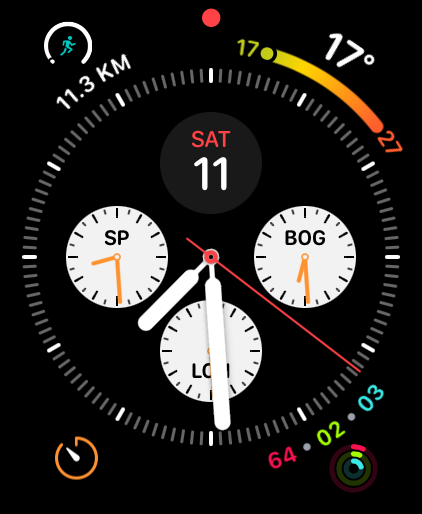

How to add a complication
-
1
Long-press your watch face
Press and hold on the watch face until the customise menu appears. Tap Edit.
-
2
Navigate to a complication slot
Swipe left until you reach the complication configuration screen. Tap the slot where you want to add Cursa — top, bottom, left, right, or corner depending on your watch face.
-
3
Turn the Digital Crown to find Cursa
Scroll through the list of available apps. Tap Cursa when you find it — you'll see a preview of the complication before confirming.
-
4
Press the Digital Crown to save
Press the Crown to exit edit mode. Your complication appears immediately showing the current month's distance. It updates automatically after each run — no manual refresh needed.
Troubleshooting
Common issues
Most Watch issues fall into three categories: sync, permissions, and GPS. Here are the fixes that actually work.
-
Runs sync via CloudKit — they don't need a direct Bluetooth connection. If it's been more than 10 minutes and the run still isn't there:
1. Check that both your Watch and iPhone are signed in to the same iCloud account (Settings → [your name] on both devices).
2. Check your iPhone has a network connection — CloudKit won't sync over a completely offline device.
3. Force-quit Cursa on your iPhone and reopen it. This triggers a CloudKit fetch.
If the run still isn't there, open the Watch app and check if it appears in the recent runs section. If it does, the data is safe and CloudKit will sync it once connectivity is restored.
-
Apple Watch GPS acquisition typically takes 10–45 seconds depending on how long since you last used GPS outdoors. A few things help:
Hold your wrist still during the countdown. Movement while searching adds noise to the satellite search.
Start outdoors with open sky. A building overhang, tree cover, or urban canyon slows acquisition significantly.
Update your iPhone's Location & Time Zone. Assisted GPS (AGPS) on the Watch uses your iPhone to download almanac data. Go to
Settings → Privacy → Location Serviceson iPhone and ensure Cursa has location access.
Series 4 or earlier: Older models use the paired iPhone's GPS rather than the Watch's own hardware. Keep your iPhone within Bluetooth range at the start of the run.
-
The Watch reads your training plan from iCloud via CloudKit. If the TODAY section is empty:
1. Check that you have an active training plan in the iPhone app. Open Cursa on iPhone → Training Plan tab. If no plan is active, the Watch won't show anything.
2. Check today's date matches a workout day in the plan. Rest days and cross-training days are intentionally hidden — the Watch only shows running workouts in the TODAY section.
3. Force a sync. On iPhone, open Cursa and navigate to the Training Plan tab. This triggers a CloudKit push to the Watch. Wait 30 seconds then open Cursa on your Watch.
4. Still not showing? Force-quit Cursa on both devices, then reopen the iPhone app first, wait 10 seconds, then open the Watch app.
-
Heart rate comes from HealthKit's live workout session — it requires the Watch to have health permissions granted.
Check permissions: On iPhone, go to
Settings → Health → Data Access & Devices → Cursaand ensure Heart Rate is enabled under both Read and Write.
Check the Watch band: The optical heart rate sensor is on the back of the Watch. If the band is too loose or you have a tattoo on your wrist, the reading may be unreliable. Tighten the band slightly — it should sit flush against your skin without cutting off circulation.
Clean the sensors: Sweat and sunscreen can interfere with the optical sensor. A quick wipe of the Watch back before your run helps.
Note: heart rate may read
--for the first 10–15 seconds of a run while the sensor locks on. This is normal. -
Cursa triggers a complication refresh after each completed run. watchOS controls the actual refresh timing — it may take up to a few minutes to appear.
Force a refresh: On your Watch, press the Digital Crown to go to the app grid, open Cursa, and close it again. This often triggers a timeline reload.
If the complication shows zero or stale data: Open Cursa on iPhone. The monthly distance is recalculated from your run history and syncs to the Watch on the next background refresh cycle.
Reinstall the complication: If it's been stuck for days, remove it from your watch face and re-add it. This resets the timeline cache.
-
The remote workout start uses WatchConnectivity, which requires Bluetooth to be on for both devices and both apps to be installed.
1. Make sure Cursa is installed on your Watch. Open the Watch app on iPhone → My Watch → Installed Apps and check for Cursa.
2. Make sure Bluetooth is on on both your iPhone and Watch. WatchConnectivity doesn't work over Wi-Fi alone.
3. Open Cursa on your Watch before starting on iPhone. The Watch app must be awake and in the foreground for the fastest response. Starting it a few seconds before tapping Start on iPhone guarantees the connection is ready.
4. If the Watch shows "busy": A previous run may have left the Watch in an active state. Open Cursa on the Watch, check if a run is already active, and end it. Then try again from the iPhone.
-
Treadmill distance is estimated by HealthKit using the Watch's accelerometer. Accuracy improves as HealthKit calibrates to your specific stride over multiple sessions.
For the first few treadmill runs, expect 5–15% variance from treadmill display distance. This is normal for accelerometer-based estimation.
To improve accuracy faster: do one outdoor run first — this calibrates the iPhone/Watch pedometer to your stride length, which HealthKit then applies to indoor distance estimates.
Wear the Watch on your dominant wrist and maintain a natural arm swing. Holding the treadmill rails reduces the accelerometer signal and makes estimates worse.
The treadmill display vs the Watch will never match exactly — treadmill displays measure wheel rotation, not stride distance. Minor differences are expected and not a Cursa bug.
-
CloudKit sync and WatchConnectivity both require the same iCloud account on both devices. If they're mismatched:
1. Runs recorded on the Watch won't appear on your iPhone automatically.
2. Training plan workouts won't push to the Watch.
3. Units and settings won't sync between devices.
To fix this: go to Settings → [your name] on both devices and verify the Apple ID shown is identical. Sign out and sign back in with the correct account on the device that's wrong. Then open Cursa on iPhone to re-establish the connection.
-
Not a bug. The complication shows distance for the current calendar month only, so it correctly resets to zero on the 1st before you've run.
If it shows zero later in the month after you've completed runs: open Cursa on the Watch, then close it. This often triggers a timeline reload. If still zero, open Cursa on your iPhone to kick a CloudKit sync. It should update within a minute or two.
-
Yes — the Corner and Circular styles can both be added to different slots on the same watch face if it supports them. Both will show the same monthly distance data. There's currently only one complication type, so two is the maximum useful count.
More docs