Workout Type
Freeform Run
GPS · Open distance · No target
The simplest option. Tap start, run as far and as long as you want, tap stop. No pace targets, no intervals. Good for easy days, recovery runs, and testing your legs before a workout.
-
1
Open Cursa and tap Freeform Run
You'll see a 3-second countdown before GPS acquisition begins. Hold your wrist steady during the countdown — it helps the Watch lock GPS faster.
-
2
Run
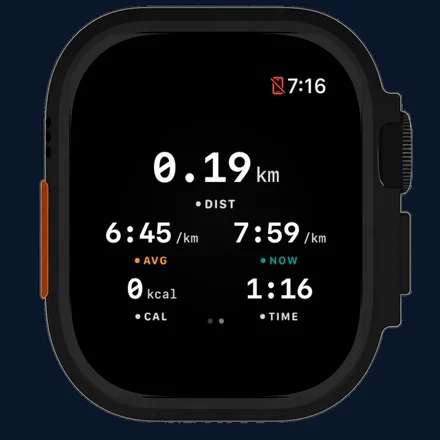
Your live metrics appear on the screen. Swipe left to see the controls page if you need to pause or adjust water lock. Swipe right to return to metrics.
-
3
End the run
Swipe to the controls page, then hold the stop button. A ring fills over 2 seconds — when it completes, your run ends and the summary appears.
Workout Type
Today's Plan
Training plan · Structured · Auto-loaded
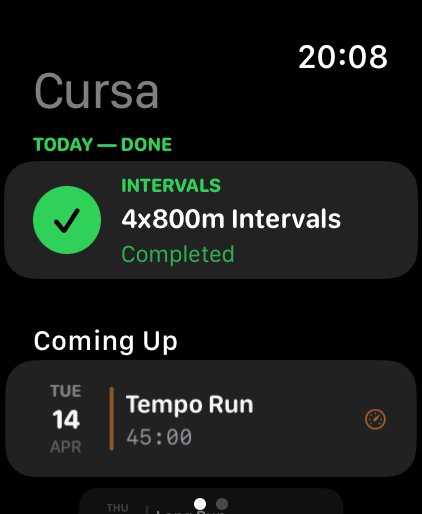
When you have an active training plan on your iPhone, today's scheduled workout appears at the very top of the picker — highlighted in teal, labelled TODAY. Tap it and the workout starts with the correct structure already loaded.
-
1
Your plan syncs automatically
No setup needed on the Watch. When you open the app, it reads your active training plan from iCloud and shows today's workout at the top of the list.
-
2
Tap the TODAY workout
The row shows the workout type (Easy, Tempo, Intervals, Long Run, etc.), the title, and the target distance or duration. Tap it to begin.
-
3
Run the workout
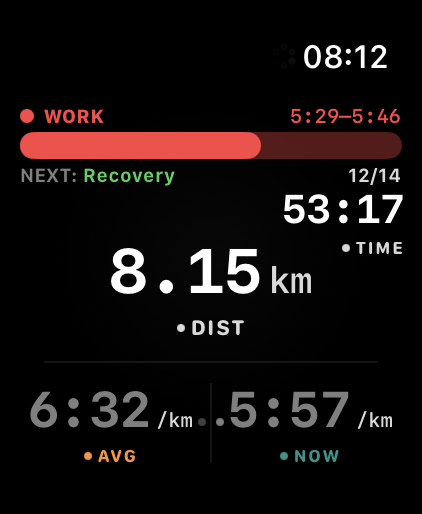
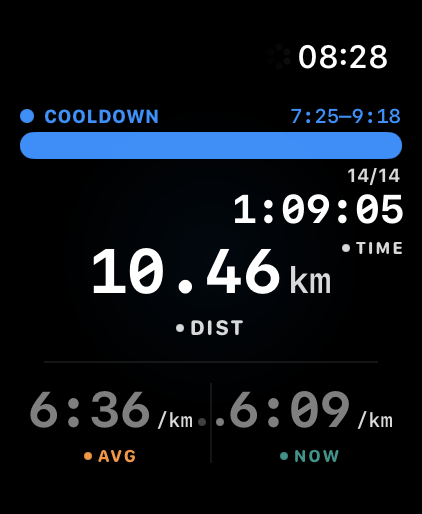
For interval workouts and tempo runs, a step banner appears at the top of the metrics screen showing the current phase (Warmup, Work, Recovery, Cooldown) and remaining time or distance for that step.
-
4
Mark it complete
When you end the run, it's automatically marked as complete in your training plan. Your plan adapts for future weeks based on what you completed.
Your plan, on the watch
Workout Type
Structured Workouts
Intervals · Tempo · Custom steps
Structured workouts give you step-by-step guidance through interval sessions, tempo blocks, and any multi-phase workout you've built in the iPhone app. The Watch coaches you through each step automatically.
-
1
Find your workout
Scroll down to the Workouts section on the picker. Any structured workout you've built or saved on your iPhone appears here — they sync via iCloud automatically.
-
2
Tap the workout to start
The row shows the estimated distance and number of steps so you know what you're committing to before you start.
-
3
Follow the step banner
A banner at the top of the metrics screen shows the current step name, type (Warmup / Work / Recovery / Rest / Cooldown), and a progress indicator. When a step ends, a haptic fires and the banner updates automatically.
-
4
Build workouts from your Watch
Tap Build Workout on the picker to create a new structured workout directly on the Watch. Choose step type, duration or distance target, and repeat count. Workouts created on the Watch sync back to your iPhone.
Workout Type
Treadmill
Indoor · Motion sensing · No GPS
GPS off, motion on. Treadmill mode uses the Watch's built-in accelerometer and Apple Health's workout ML to estimate distance and pace indoors. No phone required, no GPS drain.
-
1
Tap Treadmill on the picker
The Watch switches to indoor mode automatically. GPS location requests are skipped entirely — no waiting for satellite lock.
-
2
Start your run normally
All the same live metrics are available: distance, pace, heart rate, cadence, duration. Distance and pace come from HealthKit's motion-based estimation, which improves over time as it calibrates to your stride.
-
3
The summary shows treadmill data
No route map (there's no GPS track to show). All other stats — distance, pace, heart rate, splits, calories — appear normally.
Outdoor vs Treadmill
The main difference is the distance source. Outdoor uses GPS. Treadmill uses Watch accelerometer + HealthKit ML. Both write to Apple Health.
Calibration tip
For the first few treadmill runs, wear your Watch on the wrist of your dominant arm and maintain a natural arm swing. This helps HealthKit calibrate distance to your stride.
Workout Type
Group Run
Club events · Scheduled · Social
When your run club has a group run scheduled for today, it appears in a dedicated GROUP RUN section on the workout picker — separate from your training plan so the two don't compete.
-
1
Group run appears automatically
When your iPhone syncs a group run scheduled for today, it pushes to your Watch via WatchConnectivity. You'll see the run title, scheduled time, and meeting location.
-
2
Tap to start
The group run starts like any freeform run — GPS, live metrics, splits. Your run is tagged with the group event ID so it appears on the post-event leaderboard automatically.
-
3
Check results after
Open the run club in the iPhone app after the event to see the leaderboard. Your Watch run is already linked — no manual logging required.
Feature
Starting a run from your iPhone
You can initiate any workout from the iPhone app and have it start simultaneously on your Watch. This is useful when you're warming up and want to use the iPhone to set up the session before putting it in your pocket.
-
1
Tap "Start on Apple Watch"
On the iPhone pre-run screen, the dedicated Start on Apple Watch button appears whenever a paired Watch with Cursa is available. Tap it to launch the workout on your wrist. The regular Start button keeps the run on your iPhone — these are deliberately separate so you choose the tracker every time.
-
2
iPhone wakes the Watch app
Cursa uses Apple's HealthKit mirrored-session API to bring the Watch app to the foreground and start the workout. If the Watch app is slow to respond, Cursa automatically falls back to a WatchConnectivity message. The iPhone shows "Sending to Apple Watch…" briefly — you don't need to do anything.
-
3
Watch shows a 3-2-1 countdown
Once the Watch has the workout configuration, it runs its own 3-2-1 countdown before starting the HealthKit session. This gives you time to pocket the phone and get your wrist into position before GPS locks and metrics begin.
-
4
The Watch is the authoritative tracker
The Watch owns the primary HealthKit workout session — GPS, heart rate, distance, pace, and route are all captured on your wrist. Your iPhone receives the same metrics through HealthKit's mirrored-session feed, so if you keep the phone with you you'll see live stats too, but the Watch is the source of truth. Pocket the phone, clip it to a belt, or leave it at home — the Watch has it covered.
-
5
End the run on either device
You can stop the run from either the Watch or the iPhone — whichever is more convenient. The Watch is the session owner, so an iPhone-initiated stop is forwarded to the Watch which finalises the workout. The run saves to Apple Health and Cursa's local storage on the Watch, then syncs to the iPhone — instantly if it's nearby, via iCloud / cellular in the background otherwise. If neither device has connectivity right then, the run waits safely on the Watch and syncs the moment a network returns.
Continue